
Keyboard shortcuts
There are five shortcuts in Beerwright, and one of them opens a list of everything else. We keep it that way on purpose. A brewer who uses the app twice a month should not have to remember a keymap, so almost everything lives behind the command palette rather than behind a chord you have to look up.
Wherever these pages print ⌘, Ctrl presses the same on Windows and Linux, and the app’s own labels show whichever your keyboard has. In the recipe editor the header carries a Keyboard shortcuts button that lists the same five, so you never have to come back here for them.
The five
Section titled “The five”| Keys | What it does | Where it works |
|---|---|---|
| A | Opens the add-ingredient dialog | The recipe editor |
| ⌘K | Opens and closes the command palette | Anywhere |
| ⌘J | Opens and closes the assistant drawer | Anywhere |
| ⌘Z | Undo | Anywhere |
| ⇧⌘Z | Redo | Anywhere |
A is a bare letter with no modifier, so it only fires when you are not typing. Click into a field, a dropdown or a dialog and it types an A like any other key. Outside them, it opens the catalog dialog with the search box already focused, which is the fastest way to build a grain bill: press A, type three letters of the malt, press Enter, repeat.
⌘Z and ⇧⌘Z undo and redo across the whole workspace rather than the field you are in, because every edit in Beerwright is a command in one log. Deleting a recipe, accepting a whole assistant proposal, importing a file: all one step back. The exception is a text field you are actively typing in, where your browser’s own undo wins, which is what you want. The history is deep, and it does not survive a reload; the confirmation dialogs that matter say so.
The command palette
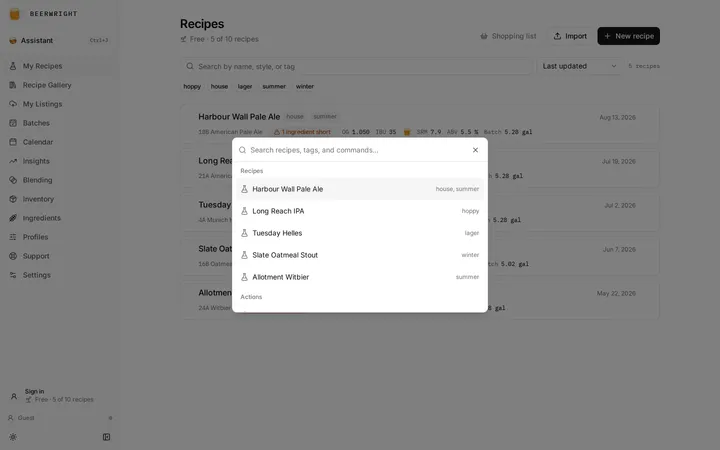
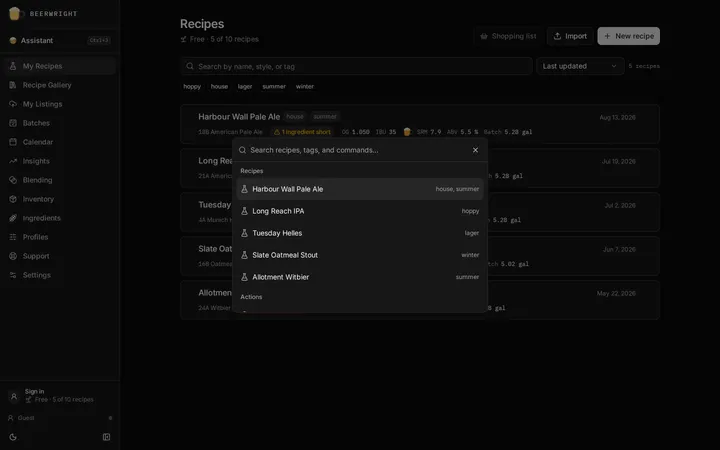
Section titled “The command palette”⌘K opens the palette, and it is the answer to “where is that?”. Type and it searches three things at once:
- Your recipes, by name, style or tag. Choosing one opens it.
- Actions: new recipe, ask the assistant, undo, redo, switch the theme, switch between metric and US units.
- Every page in the app, under Go to.
Arrow keys move, Enter chooses, Escape closes, and ⌘K again closes it too. The actions that have a shortcut of their own show it on the right of the row, so the palette is also how you learn the keys without reading this page.
Enter and Escape in a cell
Section titled “Enter and Escape in a cell”Every editable number and name in the app follows the same two rules. Enter commits what you typed and keeps you where you are, with the value selected so the next thing you type replaces it. Escape throws away what you typed, puts the old value back and takes the focus off the field.
That holds for the amounts in the fermentables and hops tables, the recipe name, the gravity and volume readings on a batch, the quantity and unit cost in inventory, and the name of a blend. It means you can type an amount, press Enter, look at the vitals rail, and press Escape if you have changed your mind before touching anything else.
In the assistant drawer the composer follows the convention every chat box uses: Enter sends, Shift + Enter starts a new line. The drawer says so under the box.
On a phone
Section titled “On a phone”None of this applies with a touch keyboard, and nothing needs it. Every shortcut has a button behind it: the add-ingredient dialog has its own Add button on each panel, undo and redo sit in the sidebar, and the assistant has a button in the header. See On a phone or tablet.
Related
Section titled “Related”- Getting started, for the tour these keys belong to.
- The recipe editor, for the panels A adds to.
- The assistant, for what ⌘J opens.
Something wrong on this page? Tell us.