
The calendar
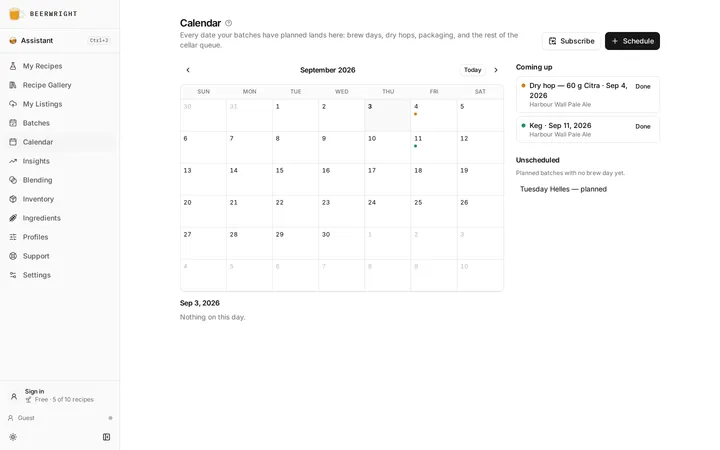
Every date a beer has planned lands on the Calendar: brew days, the stages of fermentation, dry hops, packaging, and the cellar tasks you add yourself, on a batch or on a blend. It is one page in the app, and it is also a feed you can subscribe to from your phone’s calendar, so a dry hop shows up beside the dentist.
What lands on it
Section titled “What lands on it”You never put a brew on the calendar yourself; your batches do that for you. When you log a batch from a recipe, its dates come from the recipe’s fermentation schedule and the day you brewed:
- Starter ahead of the brew, two days unless you set otherwise in Settings, when the batch’s jar or the recipe’s yeast carries one, with the culture and the step volumes. It is the only date that falls before brew day, and the one brewers miss.
- Brew on the brew day, with the recipe’s name.
- Ferment for each stage after the first, with how long it lasts. The first stage is not repeated, because brew day already covers it.
- Dry hop for each dry-hop addition, with the hops and the contact time.
- Package on the day the fermentation schedule ends.
A starter is built two days ahead by default because a stirred one is at high krausen inside a day and has flocculated by the second, which is what you want in the flask on brew morning: the yeast dropped, the spent wort ready to decant. If you build yours the day before, Settings → Calendar moves every starter date to match. Dry yeast gets no starter date, because it needs none.
Dry hops go in where a brewer actually drops them. If the recipe has a secondary, conditioning or lagering stage, the hops go in at the start of the first of those. If it only has a primary, they go in so that they come out at packaging. Counting back from bottling on a plain fourteen-day primary is what most software does, and it is not what most brewers do.
Move the brew day on the batch and every derived date moves with it, because all of them are the brew day plus an offset.
The month
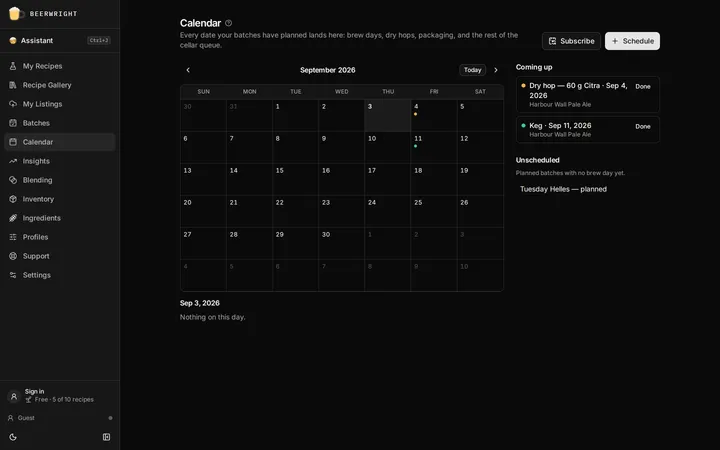
Section titled “The month”The month grid shows a colored dot for each kind of event on a day. Pick a day and its agenda appears below, or press Today to come back to now. Each event shows its title, the beer it is for, a detail line, and opens that beer when you click it.
On the right, Coming up lists the next three weeks of things not yet done. Above it, when something has slipped, Overdue lists the tasks you scheduled and never ticked, oldest first: a day that has gone by does not take the task with it, though a beer you have already packaged keeps its leftovers to itself. That last part holds for a blend too — once a blend is packaged or filed away its leftover chores stop being chores, and until then they wait however long it takes, which is what a barrel needs. Below both, when there are any, Planned lists the beers you have planned but not brewed yet, soonest first, each with the day it is down for, so a beer waiting on a free Saturday is not forgotten. A brew day that has gone by on a beer you have not brewed is marked there too. Open one to move its brew day.
An empty day tells you it is empty, and a calendar with no beers at all points you at your recipes, because logging a batch is what fills it without you doing anything else. A workspace of blends and no batches gets the month view, and Schedule is how it fills up.
Your own cellar tasks
Section titled “Your own cellar tasks”Press Schedule to add something that belongs on a day rather than in the recipe: a starter for a batch whose recipe never saved one, a dry hop you decided on late, a transfer, a cold crash, a packaging day you moved. Choose the beer, the kind of action, a title, the date and any notes, and press Add to calendar.
The beer can be a batch or a blend, and the picker lists them under Batches and Blends. That is the whole of what a blend puts on this calendar: pull the oak cubes, rack off the cherries, taste it in a month — the dated jobs a barrel actually asks for, which no schedule can work out for you. A blend’s own stage dates stay off the grid, because they are a record of what happened rather than a plan for what is next.
A task you schedule replaces the derived event of the same kind for that batch, so a packaging day you moved to Saturday is not shown twice. A blend has nothing derived to replace. Tasks you schedule can be ticked Done and reopened, here or from the Next steps list at the top of the beer’s own page — it is the same tick, on a batch and on a blend. The derived events mark themselves done as the batch moves through its statuses.
Subscribing from another calendar
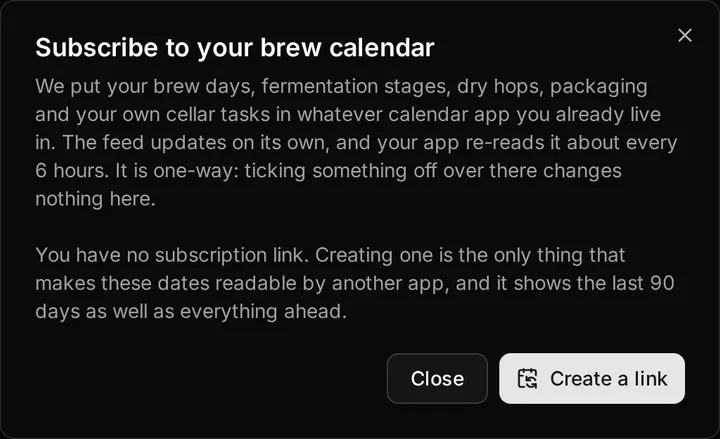
Section titled “Subscribing from another calendar”Press Subscribe and we make a link that any calendar app can read. It covers everything ahead and the last ninety days, and your calendar app re-reads it on its own, about every six hours. You can subscribe before you have brewed anything, and the dates fill in afterwards.
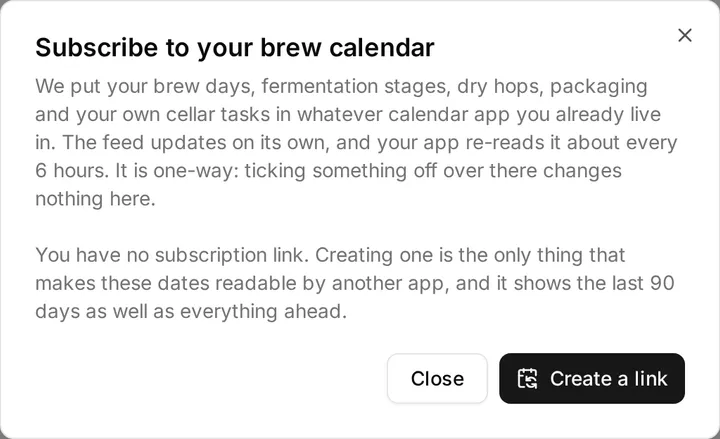
There are two addresses for the same feed. The Subscription link opens straight into Calendar on a Mac or iPhone, and into Outlook or Thunderbird. The Address for Google Calendar is the one to paste under Other calendars, From URL, because Google wants the plain address and the subscription link would only download a file.
The feed only runs one way: ticking something off in your phone’s calendar changes nothing in Beerwright, and every event is an all-day event, because a brew day is a day and nobody’s dry hop is at half past two.
What the feed contains is dates and titles: the kind of event, the beer’s name, and the detail line. It carries no recipe, no readings, no blend components, no inventory and nothing that identifies you. Events you have marked done stay in the feed with a note saying so, rather than vanishing.
If the link gets out
Section titled “If the link gets out”Anyone holding the link can read your brew dates, because there is no sign-in on it. If it ends up somewhere it should not, press Replace the link. The old address stops working the moment the new one is made, and you subscribe again with the new one. Stop sharing ends the feed without making a new one.
Subscribing needs an account, because your calendar app has to fetch the dates from us rather than from your browser. Signed out, the calendar page still works; only the feed waits for you to sign in.
Related
Section titled “Related”- Brew day and batches, where the dates come from.
- Blending, the other beer you can put a cellar action on.
- Mash and fermentation, for the schedule that sets them.
- Plans: the calendar and the feed are on every plan, including free.
Something wrong on this page? Tell us.