
On a phone or tablet
Beerwright is one app on every screen. There is no separate mobile app to install from a store, and nothing you can do on a laptop is missing on a phone. What changes is the layout, and this page is the short list of what to expect.
Installing it
Section titled “Installing it”Open the app in your browser and install it from there. On an iPhone or iPad, press the share button in Safari and choose Add to Home Screen. On Android, Chrome offers Install in its menu, or a banner the first time you visit. On a desktop, Install sits in the address bar.
Installed, it opens in its own window without the browser around it, and it opens cold with no connection at all. That is the whole reason to install it rather than bookmark it: the offline page is about the garage with no signal, and an installed app is how you get there.
On an iPhone or iPad, adding it to the home screen is also what lets brew day reach you with the app closed. See alerts on your phone.
What changes on a phone
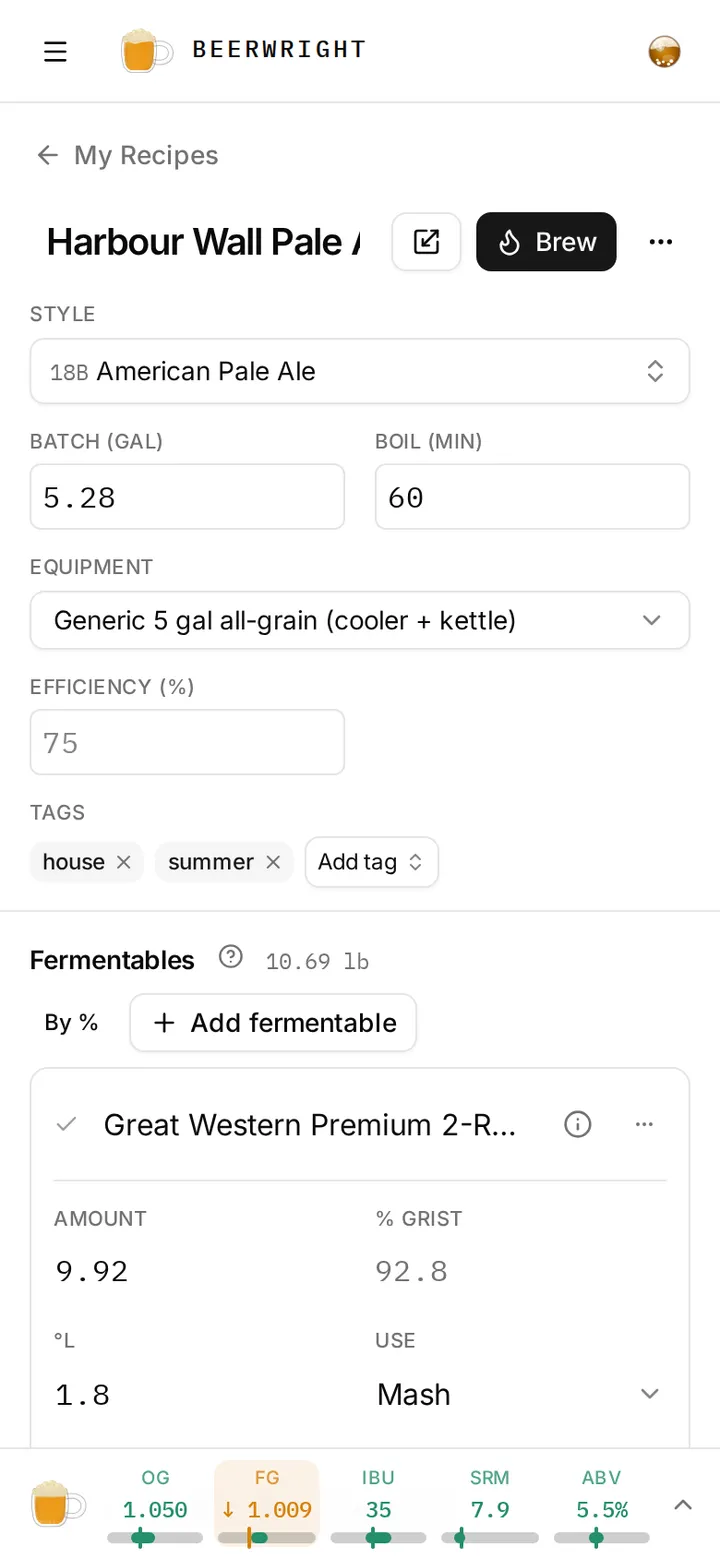
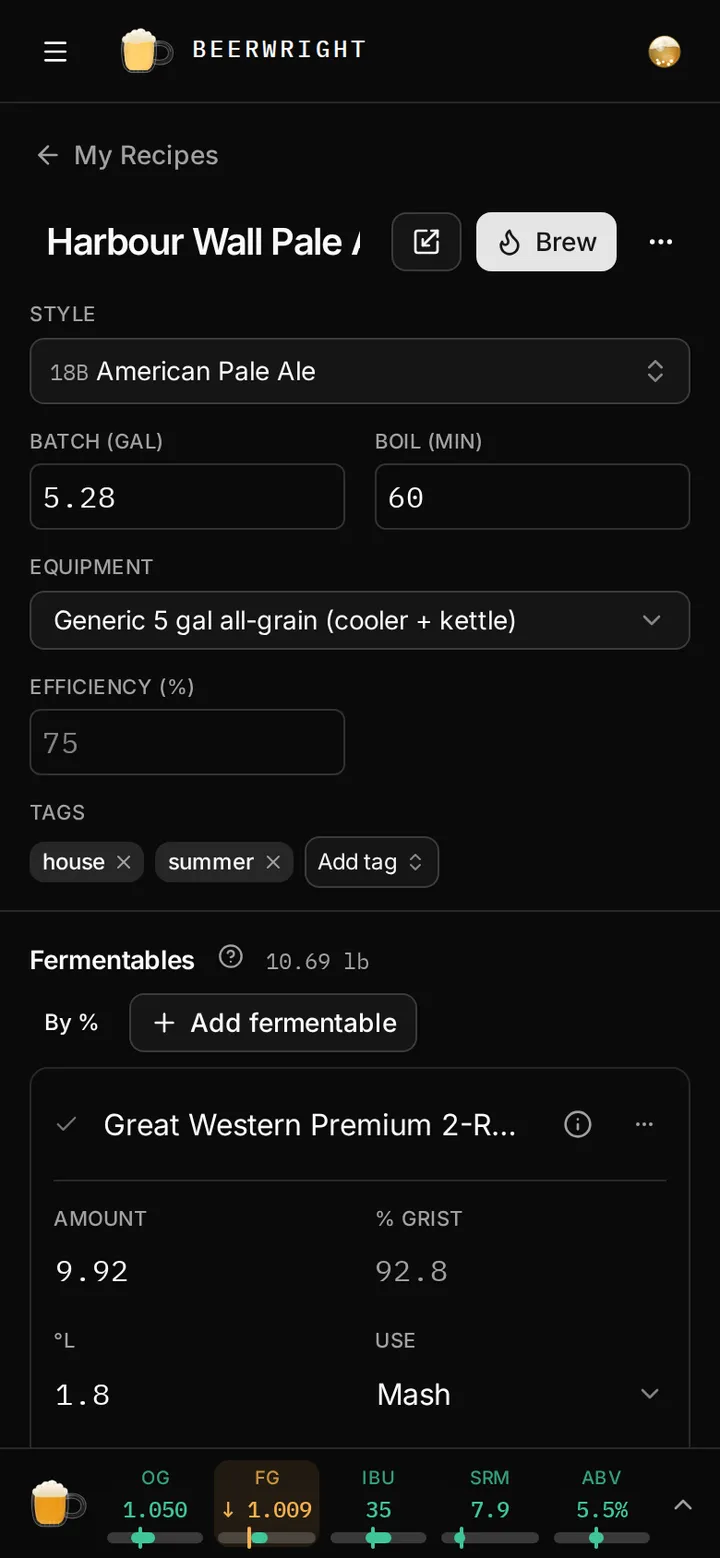
Section titled “What changes on a phone”The editor is the same single column of panels. Tables become cards, one per ingredient, with the same fields laid out two to a row, and each card’s ⋯ menu holds the same actions: view specs, replace, duplicate, remove. The vitals rail becomes a strip docked to the bottom of the screen with the five style bars in it. Tap it and it expands.
Search is the same. Press Add in any panel and type; there is no letter shortcut because there is no keyboard to press it on.
The record for an ingredient opens as a sheet from the bottom rather than a panel on the side, on the ingredients page and in the editor alike.
The assistant opens as a drawer over the editor, and its proposal cards work the same way: tick what you want, accept, and one undo takes the whole proposal back.
Brew day on a tablet
Section titled “Brew day on a tablet”Brew-day mode is built for a tablet propped by the kettle. Big steps, big timers, and a measurement field at each point where you would take a reading, so you write the number in as you get it. The brew sheet prints the same checklist step for step, for the brewer who would rather have paper near the burner.
Signing in on a second device
Section titled “Signing in on a second device”Sign in on the phone with the same address you use on the laptop and the workspace is there. Changes sync both ways whenever there is a connection, and queue when there is not. The offline page explains what the sync indicator is telling you, and what happens when two devices edit the same recipe while one of them is out of signal.
Related
Section titled “Related”- Offline, for the full story.
- Getting started, for signing in.
- Brew day and batches, for brew-day mode.
Something wrong on this page? Tell us.