
Ingredients
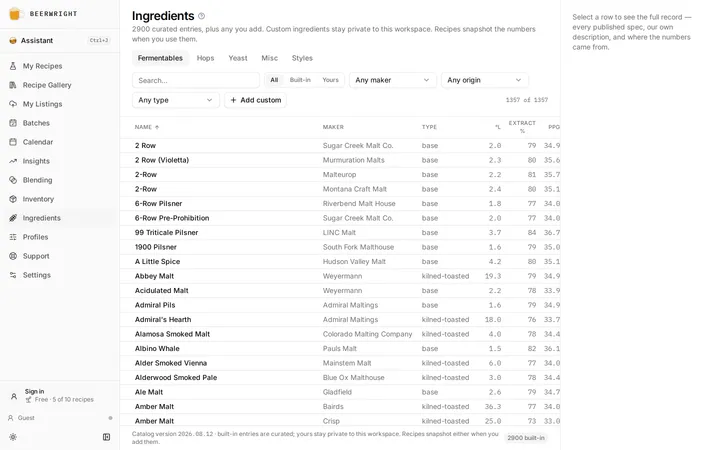
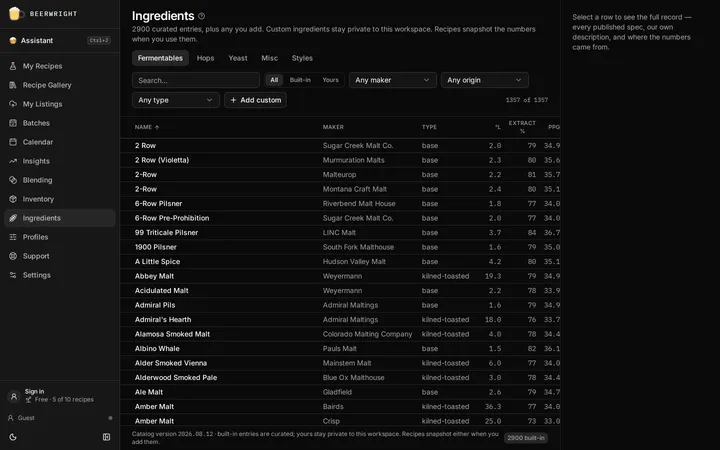
Ingredients is the catalog, opened up. Everything the recipe editor’s search can find is here as a table you can sort and filter, with the full record for each entry beside it: every published figure, our own description of the ingredient, and where the numbers came from. It is where you go to compare two pilsner malts before you pick one, to check a hop’s oil breakdown, or to add a malt of your own that the catalog does not carry.
What is in it
Section titled “What is in it”We curate the catalog by hand. Every entry was read off the maker’s own spec sheet or, where the maker publishes none, entered with class-typical figures and marked as such. We never invent precision, and the record tells you which kind of number you are looking at.
The header says how many entries there are and which catalog version you are on. A recipe snapshots the numbers at the moment you add an ingredient, so a catalog update later does not quietly move an old recipe’s color or bitterness. The footer repeats the version so you can name it if you ever write to us about a figure.
Finding things
Section titled “Finding things”Five tabs: Fermentables, Hops, Yeast, Misc and Styles. Switching a tab clears the search and the filters, because a filter that made sense for hops is noise on malts.
Type in Search and the table narrows as you go. The search reads names, makers, tags and aliases, so “saaz” also finds the Saaz-type varieties and “crystal 60” finds every maker’s version. Leave it empty and the tab lists its whole collection.
The Ingredient source control shows All, Built-in or Yours. The dropdowns beside it depend on the tab: maker, origin and type for fermentables; origin and purpose for hops; lab, type and form for yeast; type and when it is added for misc. Each starts at “Any”, and the count on the right tells you how many rows survived.
Click a column header to sort by it, and click again to flip the order. The columns are the figures a brewer compares first: color, extract and PPG for malts; alpha, beta and total oil for hops; attenuation, temperature range and flocculation for yeast.
A small dot at the start of a row means you have that ingredient in stock, read from your inventory. It only appears for lots with something left in them, and it marks your own ingredients as well as ours.
In stock beside the source control narrows the table to the rows that carry the dot. It appears once your cupboard holds something of that kind, and it combines with everything else: yours, in stock, and a New Zealand origin is three presses.
The record
Section titled “The record”Select a row and the panel on the right shows the full record. On a phone the record opens as a sheet over the table.
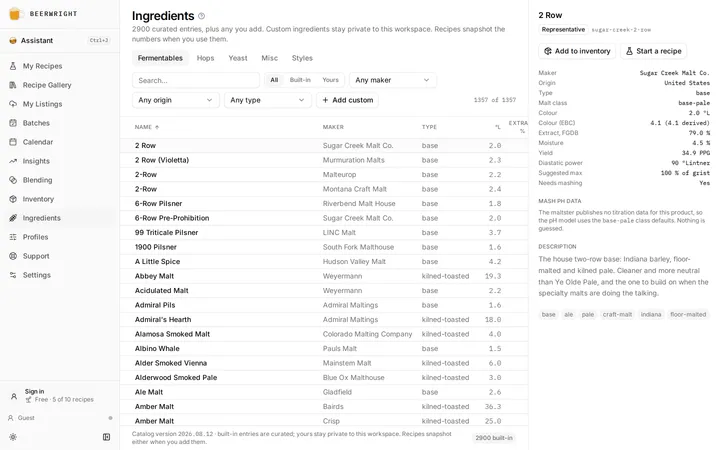
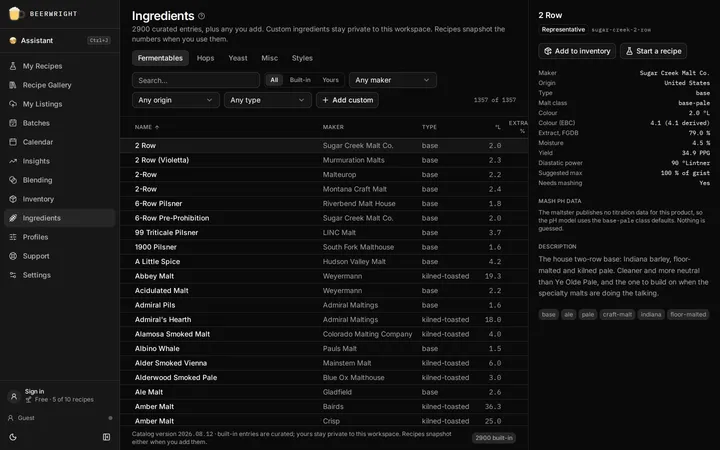
At the top is the provenance badge, and it is not decoration. Spec sheet means the maker published these figures for this exact product. Representative means the maker publishes nothing and the figures are typical for the class. A representative distilled-water pH is fine for designing a recipe with and wrong to quote as fact, and a brewer trusting a number should know which it is.
Below the badge come the specs. A malt’s record carries its color in both Lovibond and EBC, extract, moisture, yield, diastatic power, a suggested maximum share of the grist, and whether it needs mashing or can be steeped. Under Mash pH data you will see either the maltster’s titration figures or a sentence saying the maltster publishes none and the pH model is using the class defaults. We never guess there either.
A hop’s record shows the acid and oil figures, then the oil breakdown where the grower publishes one, and its character tags. Two rows of chips follow. Same cultivar lists other origin lots of the same plant, so Michigan Saaz sits one click from Czech Saaz. Substitutes lists what the trade reaches for when the variety is out. Both are buttons: clicking one selects that hop in the table. In the recipe editor the same substitutes go one step further and swap the hop in place.
A yeast record includes alcohol tolerance and STA1 status. Where a lab does not publish tolerance as a number we say so rather than inventing one, and an unpublished STA1 result is shown as unknown, never as negative. A diastatic strain that keeps fermenting in the bottle is not something to find out about from the bottle.
Every record ends with our description of the ingredient, in our own words, and a link to the maker’s own page or spec sheet where one exists. The link is to the maker, never to a shop, because shops reshuffle their catalogs and makers keep their spec sheets where they were.
From here to a recipe
Section titled “From here to a recipe”Every row and every record offers two actions. Start a recipe makes a new recipe named after the ingredient with that ingredient already in it, so browsing can turn into brewing without a trip through the editor’s search. Add to inventory opens the same dialog the inventory page uses, for the moment you are looking at a malt you know is in the cupboard.
Your own ingredients
Section titled “Your own ingredients”Press Add custom on any ingredient tab to add something the catalog does not have. Custom ingredients are private to your workspace, marked Yours in the table, and they behave exactly like built-in ones in the editor. Recipes snapshot their numbers when you add them, so editing a custom malt later does not move a recipe you brewed with the old figures.
The fields are the ones the calculations need. For a malt: class, mash pH class, color, extract, moisture and diastatic power. For a hop: purpose, alpha, beta and oil. For a yeast: type, form, an attenuation band and a temperature band. For a misc: type, when it is added, form, and optionally a time and a strength. A name is the only field you cannot leave out, and anything you type in a number field has to be a number.
If you are signed in and the assistant is on, there is a shortcut. Paste the maker’s product page into Read a product page and press Read it. The assistant reads the page and fills the fields in for you to check. It never saves anything itself: you look at each number against the page, then press Add. Each lookup uses one assistant message.
Select a custom ingredient and its record shows what you entered, your notes, and what you have in stock, with Edit and Delete beside the two actions every record has.
Asking us to add it to the catalog
Section titled “Asking us to add it to the catalog”A custom ingredient you keep having to maintain is a gap in our catalog. If you are signed in, the record of any custom ingredient has Request for the catalog. It opens a support conversation with your figures already in it and asks one thing: where you buy it. A link to the maker’s spec sheet is the most useful thing you can give us, because it is what lets us check your numbers against theirs. If they hold up, the ingredient goes into the built-in catalog for everyone, and you can stop keeping your own copy.
We reply in the app and email you when we do.
Styles
Section titled “Styles”The fifth tab lists the BJCP 2021 styles with their published ranges, and Start a recipe on a style makes a new recipe with that style set. The styles page explains the ranges and how the editor uses them.
Related
Section titled “Related”- The recipe editor, where the same records open from a row’s menu.
- Inventory and shopping, for what the stock dot means.
- Styles, for the fifth tab.
Something wrong on this page? Tell us.