
Tasting feedback
Most of what people say about your beer is lost by the time you are back in the kitchen. Feedback is where it stops being lost: you print a card for the bottles you hand out, whoever holds one sends you a scoresheet from their phone, and every sheet lands on one page beside the batch it belongs to. The sheets a competition posted back go on the same page, read from a photograph.
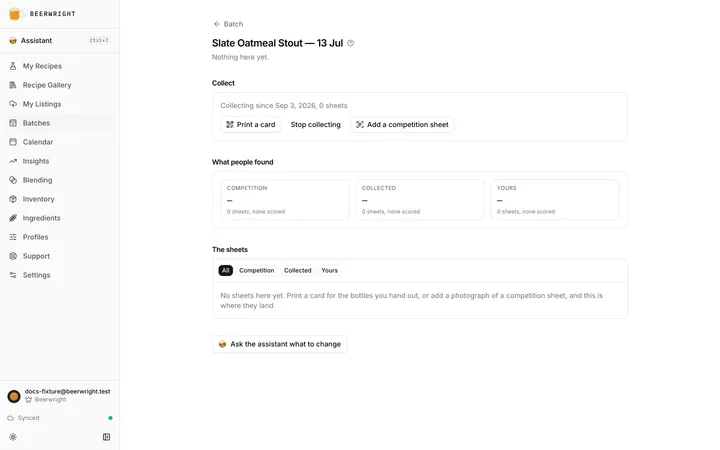
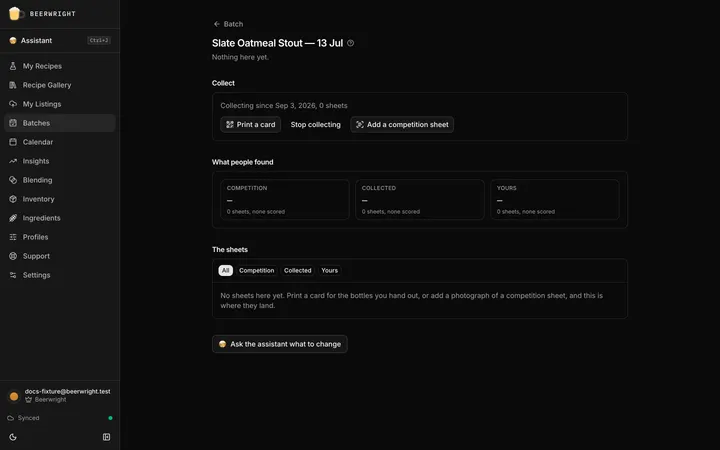
You get there from Feedback in the batch header, next to Brew day. When sheets have arrived that you have not read yet, the button carries the count, and opening the page clears it the way an inbox does.
Printing tasting cards
Section titled “Printing tasting cards”Tick the beers you are pouring on the batches page, with the same tick box each recipe carries for a shopping list, and press Print tasting cards. The button counts what you have ticked, and the Packaged and Conditioning chips narrow the log to the beers you can actually pour for somebody. The sheet is two columns, six cards to a page, on A4 or US Letter, with a dashed line where the scissors go. Your browser’s own print dialog is what puts it on paper, or saves it as a PDF. The Feedback page has the same action for one beer, under Print a card.
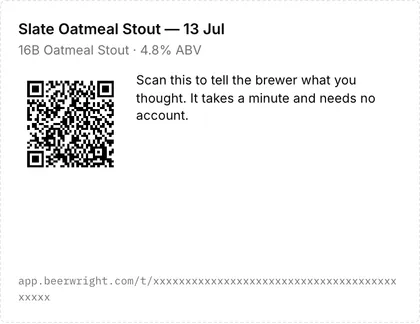
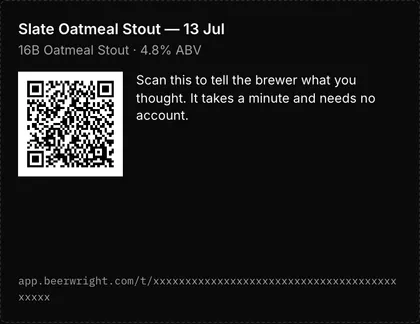
A card carries the beer’s name, its style and its strength, a square to scan, and the same link in type underneath for the one person whose phone camera will not cooperate. We put nothing else on it. A taster is owed the style, because that is what lets them judge it as one, and the strength, because they are about to drink it. The grain bill stays yours.
The link keeps collecting for as long as you leave it running, so a card tied to a bottle in July still works in November. Stop collecting ends it, and anyone who scans that card afterwards is told the link is not live any more rather than being left with a form that goes nowhere.
A blend prints the same way, from Print a card on its own Feedback page, and its card reads Blend with the strength of the blend where a batch’s card reads its style.
A journal prints the same way too, for a cider, a mead or a hot sauce, from Print a card on the journal’s Feedback page. A journal has no style, so its card says the strength from the newest ABV calculator on the page, and says nothing on that line when the page has none.
Letting tasters see what is in it
Section titled “Letting tasters see what is in it”The print page carries one tick: Let tasters see what is in it. Leave it alone and the form behind the code says the beer’s name, its style and its strength, and nothing about how you made it. Tick it and every card on the sheet gains a link.
What that link opens depends on the beer. For a batch it is the recipe as you brewed it, the version that batch froze on its brew day, so editing the recipe afterwards changes nothing for somebody holding a bottle you gave away in July. For a blend it is the blending session: the beers that went into it, what you folded in with them, and what they came to. A blend was never brewed from a recipe, so the session is the honest answer to what is in the glass.
For a journal it is the journal’s shared page, and that page is the whole journal as you share it: every block you have not hidden, photos and files included. It is worth a look down the page before you tick it.
Nothing on the printed card changes either way, and neither does the code. The tick decides what the form offers, so if you change your mind, untick it and print the sheet again.
Printing bottle labels
Section titled “Printing bottle labels”If you would rather stick the code on the bottle than tie a card to it, open the batch and press Print labels. The page you land on shows an Avery 5520, thirty weatherproof labels of one inch by two and five-eighths, and the same layout as the 5160. Pick a beer, tap the labels it goes on, add another beer if the sheet is shared, and print. Labels you leave blank stay blank, so a part-used sheet goes back in the drawer for next time: when you come back, tap the ones that are still there.
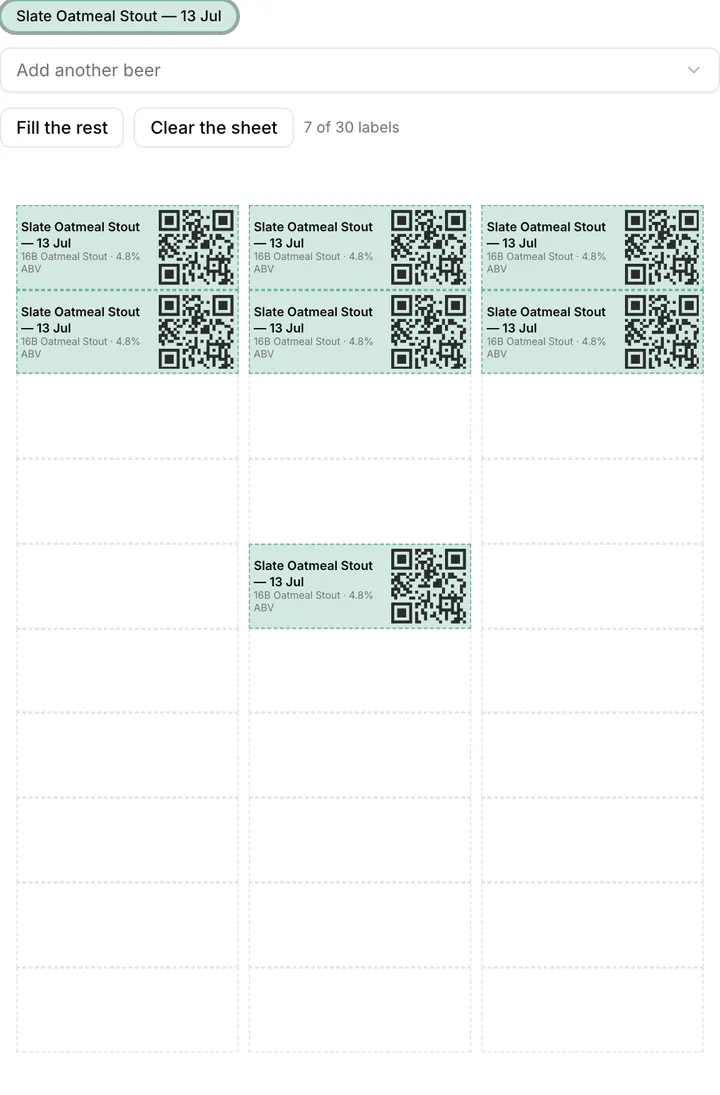
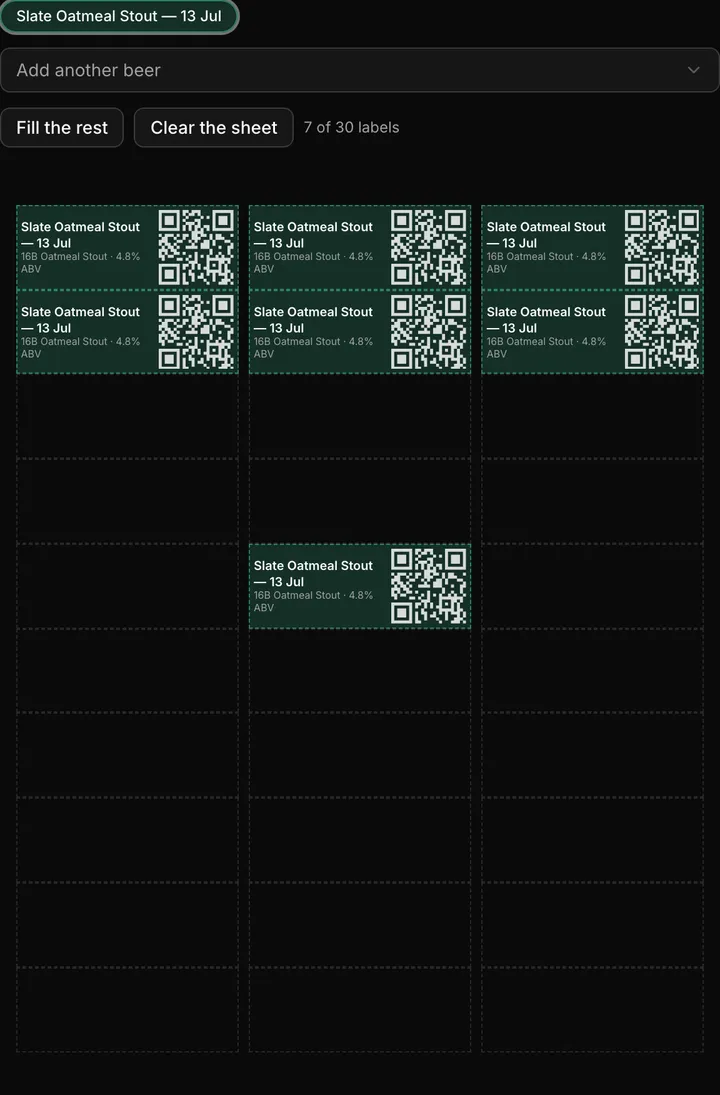
Print at 100% with no margins, on US Letter. Each label carries the beer’s name, the recipe if it is named differently, the style and the ABV, and the same code the tasting card does, so whatever people send lands on the batch either way.
Print labels on a blend opens the same sheet, and a blend’s label reads Blend with its strength where a batch’s reads its style. You can put both on one sheet: Add another lists your batches and your blends under headings of their own.
A journal’s Print labels opens the same sheet again, and its label carries the journal’s name, the strength when the page has an ABV calculator, and the code. Journals get a heading of their own under Add another too, so a cider and the beer you brewed beside it can share a sheet.
The two forms
Section titled “The two forms”Scanning a card opens a short page with your beer’s name on it and nothing else of yours. There is no account to make and no sign-in, and we never ask who the taster is: the name field is optional and starts blank, and a sheet with it empty reaches you as Anonymous. What they write goes to you and to nobody else.
Quick is what opens first, for the friend at a club meeting with a glass in one hand. It is a slider from 0 to 50 with BJCP’s own word for the number beside it as they drag, one line saying what the ends of the scale mean, the eighteen descriptor chips with a plain-English hint on each of them, one question (“What stood out, and what would you change?”), and their name if they want to give it. Nothing is scored until the slider moves, so a sheet never arrives carrying a number nobody chose.
Full sheet is the 2021 BJCP sheet, a tap away for a judge or for anybody who wants to take their time: name, BJCP ID and rank, bottle inspection, the five sections each with a score and a comment, the same descriptor chips, the three 1 to 5 rows with the sheet’s own words at each end, and closing notes. The total adds itself up as the sections are filled in.
Either way, sending ends with one sentence saying the sheet has been passed on. Somebody who comes back to the same card later is told they have already sent one and offered the form again, because a second glass on a second night is a real opinion and we would rather have it.
A journal’s form is the same two sheets with the beer taken out of them. The five sections and the fifty points are all still there, because aroma, flavor and the rest are what anyone tasting anything gets asked. The eighteen descriptor chips are gone, and so are the BJCP ID, the rank, the bottle inspection and stylistic accuracy. Those chips name faults in beer, and nobody should be asked whether their hot sauce is light-struck.
Competition sheets
Section titled “Competition sheets”Add a competition sheet takes what came back from a competition: a photograph of the paper, or the PDF the organizers emailed, up to twelve pages in one go. Your device turns each page into an image before anything is uploaded, so what we store is a legible picture of the sheet a judge actually wrote on.
We then read it and fill a scoresheet in from it: the section scores, the total as written, the descriptors that were ticked, the comments, and the date on the sheet. Several judges in one scan become several sheets, all pointing back at the same pages. Reading a scan spends one of your monthly assistant messages, and the pages are stored before any reading happens, so a read that goes wrong has cost you a retry rather than the photograph.
The three 1 to 5 rows are the one thing we do not read. A tick in one of five small boxes is too small a mark to read from a photograph with confidence, and a wrong number that looks read is worse than a blank, so the review asks you to tap the box the judge marked.
Checking the reading
Section titled “Checking the reading”A sheet read from a photograph is a draft until you say it is right. Its row carries Check this reading and opens with the page on one side and the sheet on the other, with anything we were unsure of marked for you. Correct what needs correcting and press That’s right, and the sheet joins the rest. Read again has another go at turning what we read off the pages into a sheet, when the reading came out badly enough that starting over is quicker than fixing it. Until a sheet is confirmed, the assistant is told it is a draft and says so before leaning on it.
What the sheets add up to
Section titled “What the sheets add up to”The top of the page counts what you have: competition sheets, tasting sheets, and your own. Under What people found is the average score from each of those three sources, the descriptors people ticked most often with the number of times each was ticked, and, when two or more judges have scored the beer, how far apart they were. Two judges agreeing is a stronger signal than either of them alone, which is why the spread is worth printing.
The sheets themselves are listed newest first, and the chips above them filter to Competition, Collected or Yours. Each row opens into the whole sheet: every section score, every comment, the descriptors, and the taster’s name where they gave one.
A blend has a page of its own, reached from Feedback in the blend’s header, and it holds that blend’s sheets and scans exactly as this one holds a batch’s. Two things are missing from it, because they are the batch’s alone: there is no Yours chip, since your own tasting is something you write on a batch, and no Ask the assistant what to change, since what that reading gives you is what to change in the recipe and a blend has none.
A journal’s Feedback page is the blend’s, reached from Feedback in the journal’s header, and it leaves out the same two things for the same reasons.
An email when sheets arrive
Section titled “An email when sheets arrive”We send one email a night, only on nights somebody wrote to you, saying how many sheets arrived and linking to what they arrived on — a blend’s or a journal’s goes to its own Feedback page. One email a night rather than one a sheet: a club meeting is thirty sheets in two hours, and thirty emails is the fastest way to turn the whole thing off. Sheets you have already opened in the app are not emailed about, since you have seen them.
The email counts and links, and never names the beer. You named it, and an email is read in places you did not choose. The switch is in Settings → Notifications, called Tell me when tasting sheets arrive, and it is on: printing a card is a clear enough sign that you want to hear about the answers.
Asking what to change
Section titled “Asking what to change”Beside the batch name at the top of the page, Ask the assistant what to change opens the assistant on this batch and asks it to read the sheets. It weighs a judge’s sheet above a quick one and two judges agreeing above either, keeps “not to style” apart from “not well made” because they call for different advice, and reads each descriptor as a pointer at a part of your brew day: butter at fermentation temperature, green apple at beer pulled off the yeast early, stale paper at how it was packaged. Then it looks at what you actually measured, and names the reading that would settle the question when your log has not got it. Each answer spends one of your monthly assistant messages.
Which plan
Section titled “Which plan”Printing cards, reading competition sheets and this page are part of the Beerwright plan, alongside fermentation charts and Insights. They are the same kind of thing: a record about a batch that is kept on our server rather than on your device, which is also why this page needs a connection when most of the app does not.
The form on the card is not part of that. A card already tied to a bottle keeps collecting whatever happens to your subscription, and we keep every sheet that arrives until you are back on the plan that reads them. What a lapse stops is printing new cards, reading scans and opening this page, which are all yours rather than the taster’s.
Related
Section titled “Related”- Brew day and batches, for the batch these sheets belong to and the tasting sheet you fill in yourself.
- Insights, where your own tasting scores meet the numbers from the brew day.
- The assistant, for what it can read and how the monthly messages work.
- Settings, passkeys and notifications, for the nightly email’s switch.
- Plans, billing and trial codes, for what the plan includes.
Something wrong on this page? Tell us.